How to change a Shopify product URL without losing its traffic
Edit the product URL handle in four steps, then check the redirect, handle bulk changes safely and fix the chains left by products renamed twice.
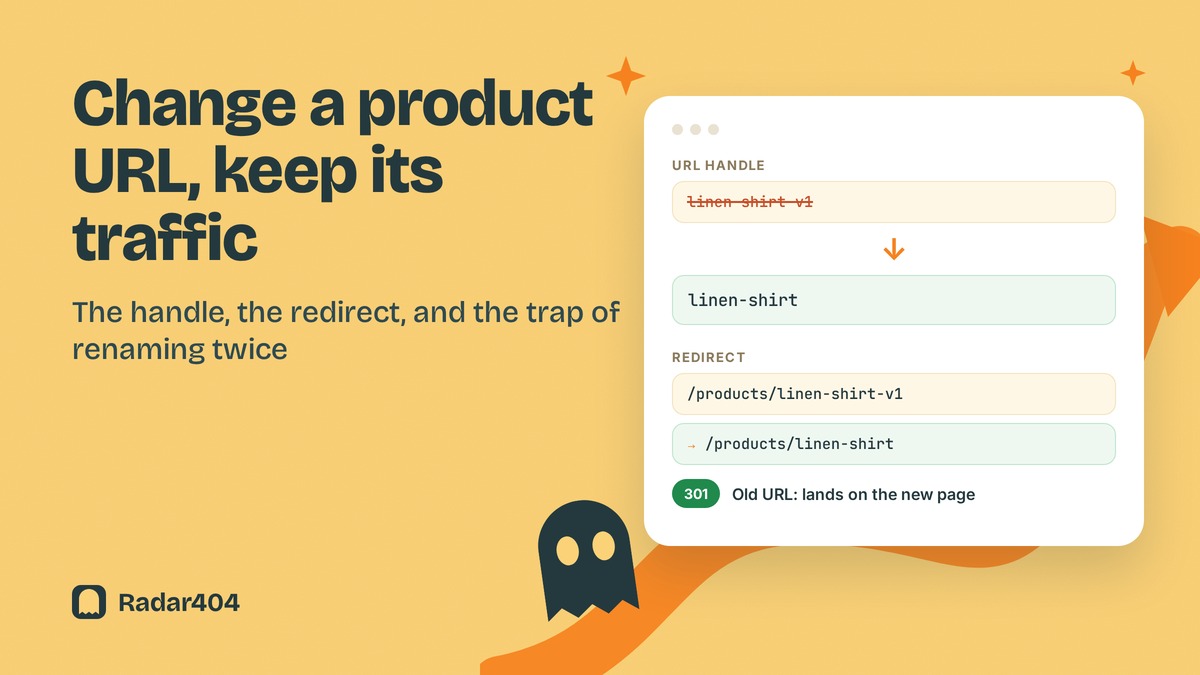
Customers bookmark your product URL and find it on Google. Change it without a redirect and those links lead to a "page not found". The edit takes a minute. The work that protects your traffic comes right after you click Save. For redirects in general, see our Shopify 301 redirects guide.
Change the product handle in four steps
Shopify's help page on adding and updating products gives the path:
- In the admin, go to Products and click the product.
- In the Search engine listing section, click the pencil icon.
- Adjust Page title and Meta description if you like. In the URL handle field, type the new handle, for example
linen-shirtinstead oflinen-shirt-v1. - Click Save.
The web address can't contain spaces: use letters, numbers and hyphens.
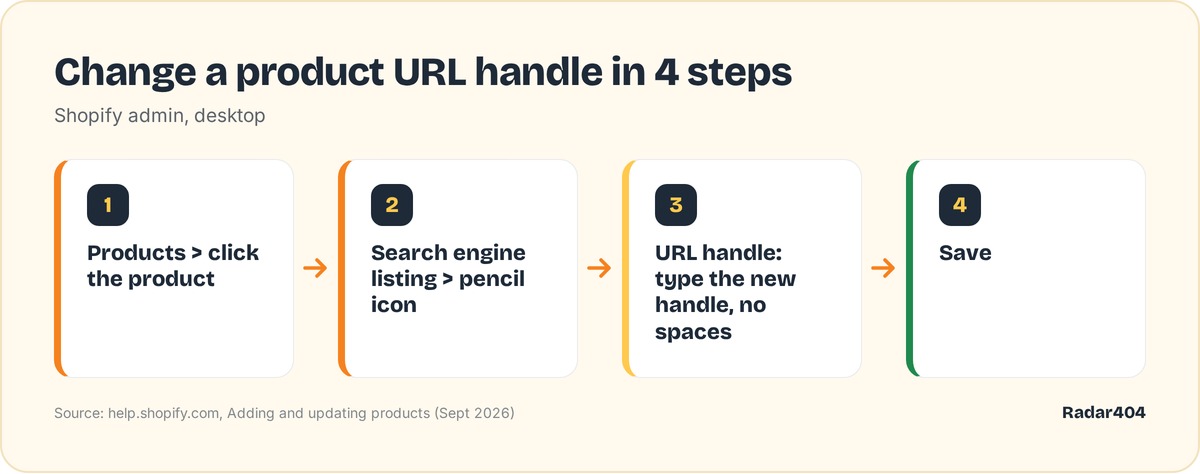 The four admin steps: Products, Search engine listing, URL handle, Save.
What you can change, and what stays fixed
A product URL has two parts. The /products/ prefix is fixed. The part after the last slash is the handle, and it's the only piece you control. Shopify's URL redirect documentation lists /products as a fixed path, and answers in the Shopify Community say the prefix can't be removed.
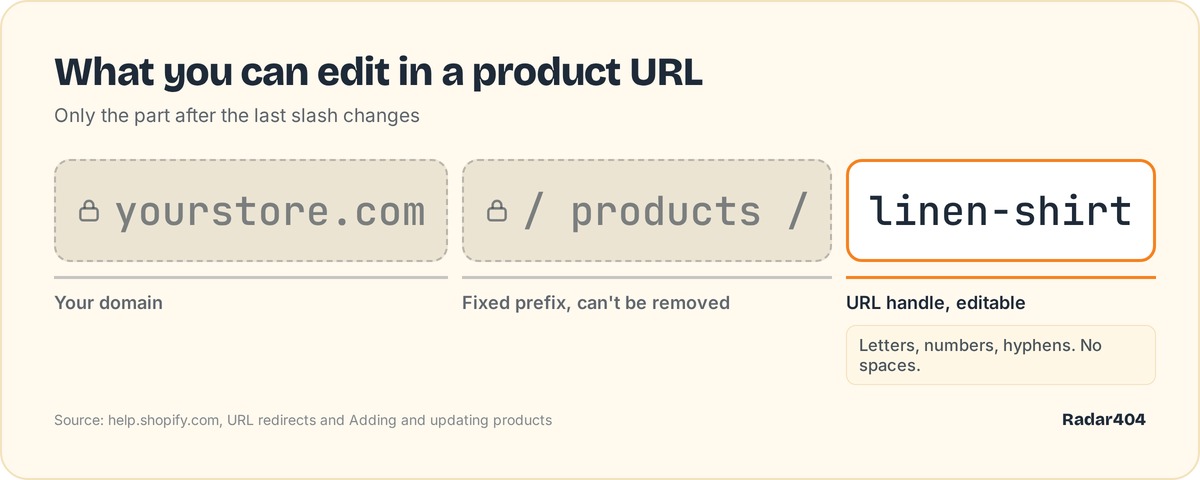 The domain and
 /products/ stay fixed; only the handle after the last slash changes.
Pick the final handle once. Shopify's collection settings page warns that editing a collection handle too often can keep it out of search results. Each rename also adds one more old URL to redirect.
Check the redirect after saving
For collections, Shopify documents an option to create a redirect from the old URL to the new one. The product page describes the handle field and the Save button, with no redirect option. So check instead of assuming:
- Go to Content > Menus > View URL Redirects.
- Look for a redirect from
/products/linen-shirt-v1. - If none exists, click Create URL redirect. Enter
/products/linen-shirt-v1in Redirect from and/products/linen-shirtin Redirect to, then click Save redirect.
Shopify states that "URL redirects start working immediately." A relative target like /products/linen-shirt keeps visitors on your primary domain.
One rule explains most surprises: Shopify only redirects broken URLs. "If the URL still loads a valid webpage, then the URL redirect won't work." If you later give the old handle to another product, the redirect stops firing.
For search, Google treats a permanent redirect as a signal that the target should be canonical (redirects and Google Search).
Bulk handle changes: CSV and bulk editor
For many products, the CSV looks tempting. Shopify's product CSV documentation calls the Handle "the unique identifier for each product". With the overwrite option, rows whose handle matches an existing product replace its values.
What the page doesn't say: what happens when you change a handle in the file, and whether Shopify creates any redirect. We found no documentation on redirects from the bulk editor either. Plan as if neither creates one:
- Export your products before the change and keep the list of old handles.
- Build a redirect file that maps each old URL to its new one, starting from Shopify's sample template.
- Import it in Content > Menus > URL redirects > Import, check the Review the import screen, then click Import redirects.
Our guide to bulk redirects with a CSV covers the file format. A single missing row leaves an old URL on a 404, and Shopify won't warn you. Radar404 fills that gap: a beacon on your 404 page reports each broken URL as visitors request it.
Products renamed twice: collapse the chain
Say linen-shirt-v1 (A) became linen-shirt (B), then linen-shirt-organic (C). You add B → C, but A → B still exists: a visitor on A takes two hops.
Google's site move guide asks you to avoid chains. Googlebot follows up to 10 hops, but Google advises ideally no more than 3, and fewer than 5. Fix: select redirect A in the list, click Edit redirect and point it to C. Keep B → C.
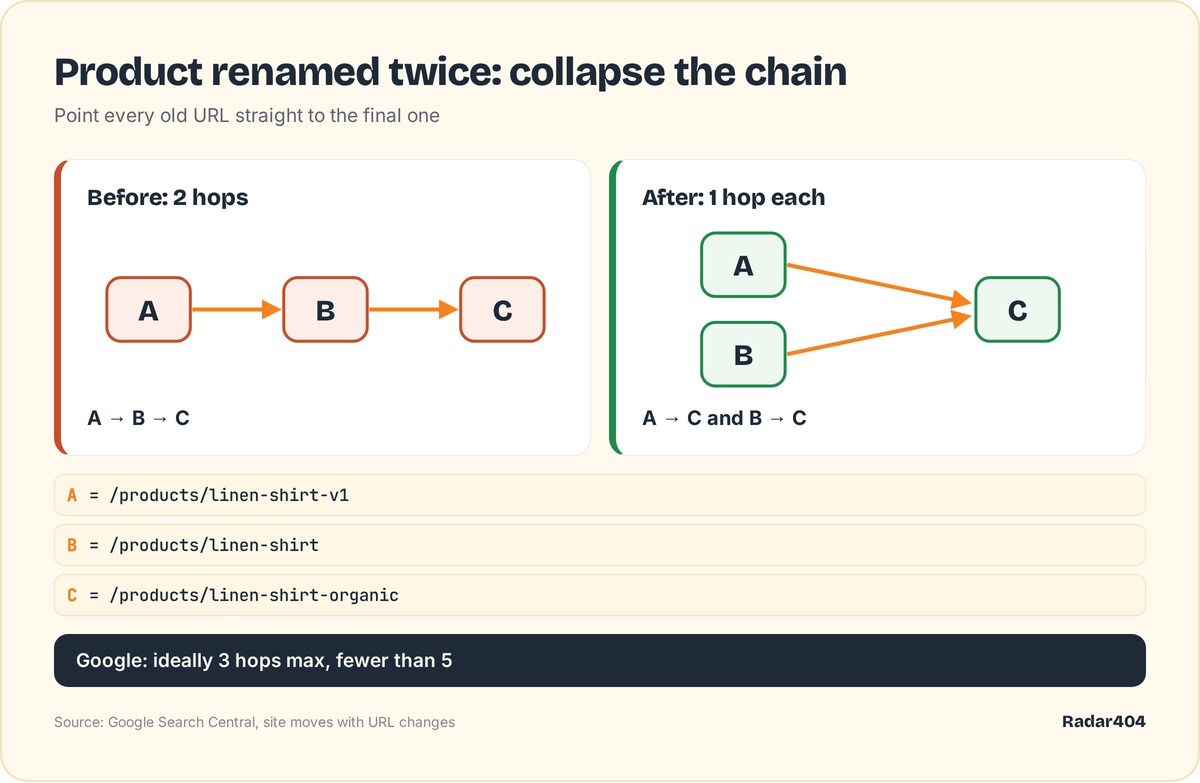 Before: A goes through B to reach C. After: A and B each point straight to C.
Keep those redirects for at least a year, as Google advises in the same guide.
Test the old URL
Open the old URL in a private window or on another device. Shopify's help page notes that browsers and search engines cache 301 redirects, so your usual browser can show an outdated result.
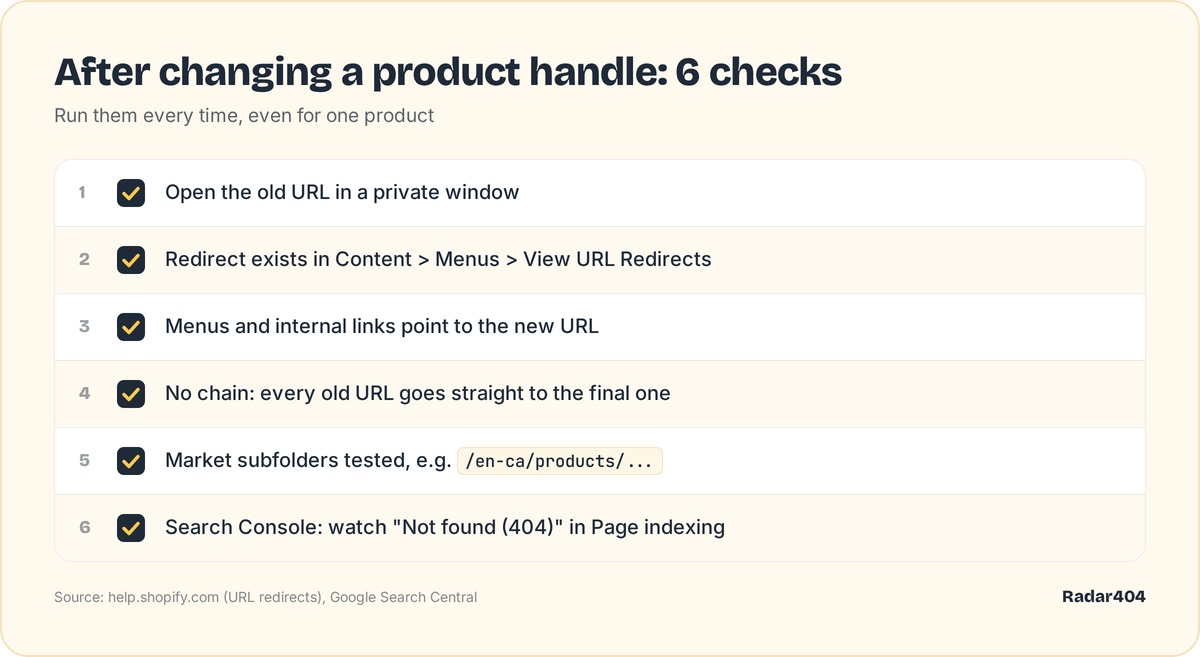 Six checks to run after every handle change.
If you sell in several markets, test the market subfolders too, for example /en-ca/products/linen-shirt-v1. Shopify's page contradicts itself on subfolders. In Google Search Console, the page indexing report lists URLs in "Not found (404)", and Google recommends a 301 when a page has moved.
If the old URL still returns a 404, work through our Shopify redirect not working checklist.
Catch the 404s you missed
Manual checks cover the renames you remember. Radar404 catches the rest: it compares each broken URL with your catalog and suggests the closest existing product with a confidence score. Above your threshold it creates the permanent redirect right away. Its redirects are native Shopify redirects, so they stay active if you uninstall. It doesn't crawl your site: it sees a broken URL only when a visitor or a bot requests it. As of September 26, 2026, the Free plan includes unlimited 404 detection, one-click manual redirects and 3 AI suggestions per month; Starter at $5/month adds automatic redirects.
Frequently asked questions
How do I change a Shopify URL handle?
Go to Products, click the product, then click the pencil icon in the Search engine listing section. Edit the URL handle field (no spaces) and click Save.
How do I change the product link in Shopify?
The link follows the product's URL handle, the part after /products/. Change the handle in the Search engine listing section of the product page, then check that the old URL redirects to the new one.
How do I redirect a URL to another URL in Shopify?
Go to Content > Menus > View URL Redirects and click Create URL redirect. Enter the old path in Redirect from, the new path in Redirect to, then click Save redirect. Shopify only redirects URLs that no longer load a page.
Does Shopify create a redirect when I change a product handle?
Shopify's product help page does not mention a redirect option, while its collection page describes one. After changing a product handle, open your URL redirects list and create the redirect yourself if it is missing.
Can I remove /products/ from a Shopify URL?
Shopify treats /products as a fixed path, and Shopify Community answers say the prefix can't be removed. You can only change the handle that follows it.