Shopify collection URLs: remove /collections/, rename or delete a collection without 404s
The /collections/ prefix is fixed on Shopify, but the handle after it is yours. How to rename, hide or delete a collection without leaving 404s behind.
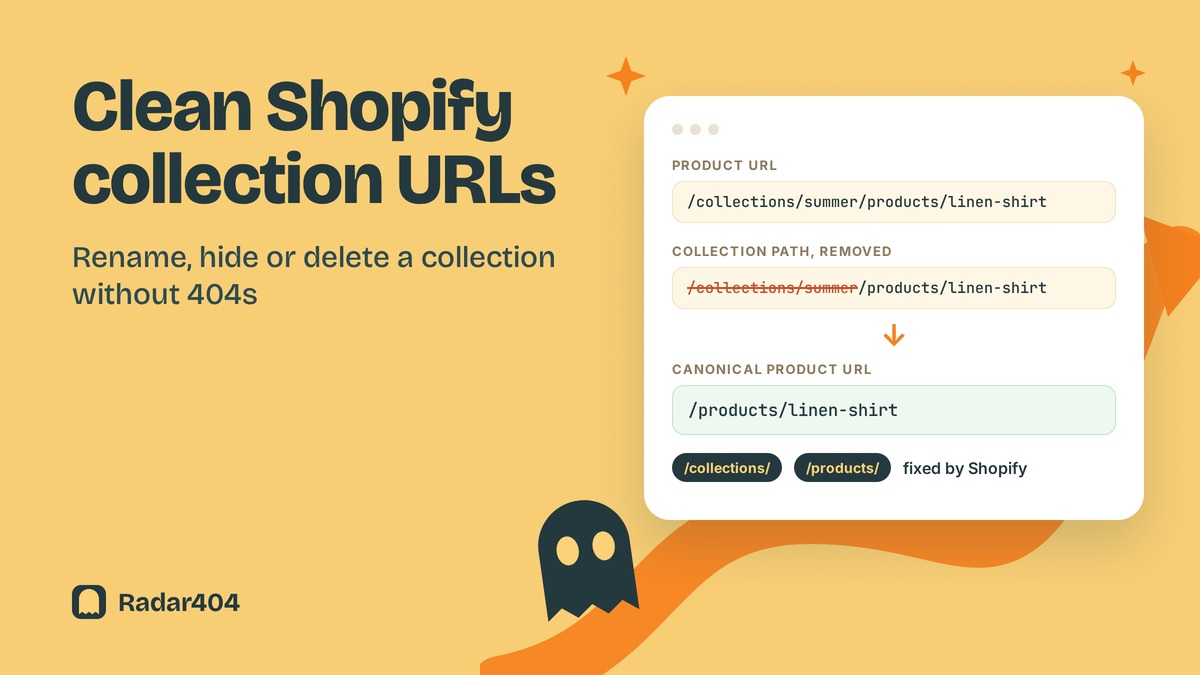
Merchants keep asking how to get /collections/ out of their Shopify URLs. You can't. The part after the prefix is yours, though, and renaming, hiding or deleting a collection each changes what happens at the old address. Here is each case and the redirect it needs.
The fixed part: /collections/ and /products/
Shopify's URL redirects documentation lists /products, /collections and /collections/all as fixed paths. You can't redirect them, and no help center page offers a setting to remove them. Shopify Community answers agree that the prefixes belong to Shopify's system. Put your effort into the handle instead.
The part you control: the URL handle
When you create a collection, Shopify generates a URL handle for it automatically. You can edit it in Products > Collections, then open the collection, go to the Search engine listing section and click the edit icon. The URL handle field changes part of the web address. It can't contain spaces.
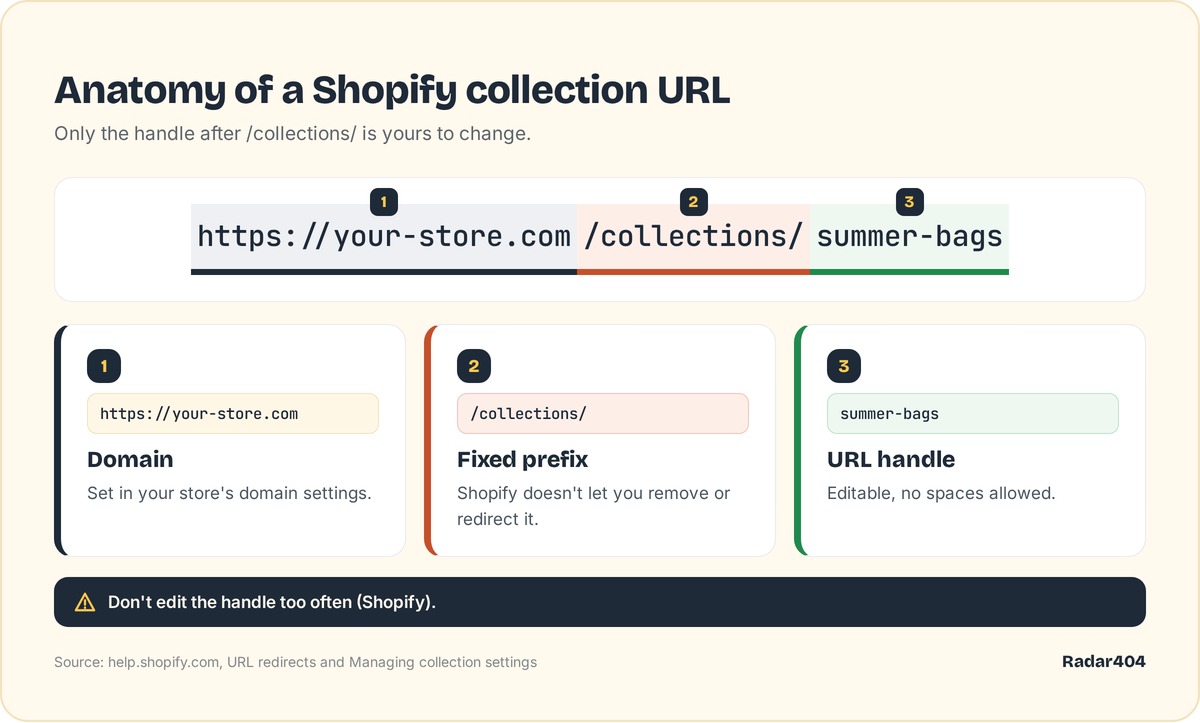 The domain and the /collections/ prefix stay fixed; only the handle after them is editable.
Shopify gives one warning in its collection settings guide: don't edit the handle too often, or the collection might not display in search engine results. Pick a clear handle once and keep it.
Three moves that break a collection URL
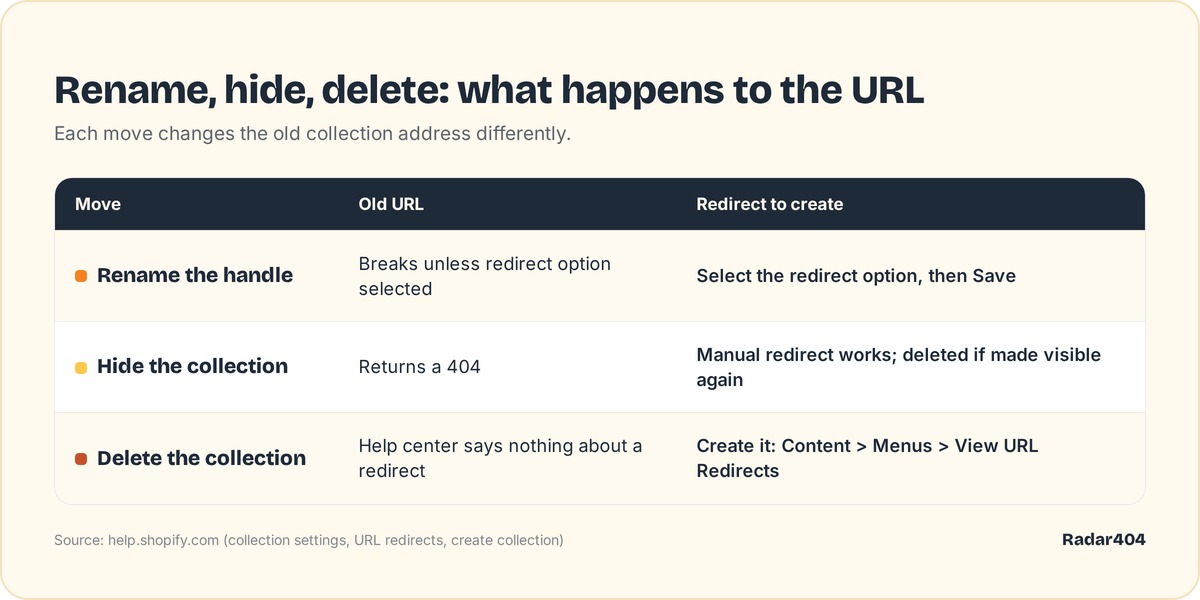 What each move does to the old collection URL, and the redirect you need.
Renaming the handle
Below the URL handle field, Shopify lets you select whether to create a redirect from the old URL to the new one. In the Shopify mobile app, the checkbox reads "Create a URL redirect from the previous handle". The help page doesn't say whether it is checked by default, so look at it every time before you click Save. With the box selected, customers who click an old link land on the new collection instead of a 404 page.
Hiding the collection
Hiding a collection doesn't hide its products: they keep their own availability. The collection URL, however, starts returning a 404. At that point a redirect you create for it works. The trap comes later: if you set the collection back to visible, Shopify deletes that redirect automatically, without a warning.
Deleting the collection
The steps are in the create and delete collections guide: Products > Collections, select the collection, open the menu, Delete collection, then Delete. The collection is permanently removed from your admin, and Shopify removes links to it from your online store menus.
The page says nothing about a redirect. Plan to create one yourself: Content > Menus > View URL Redirects > Create URL redirect, then enter the old path in Redirect from and the closest collection in Redirect to. Remember the rule from the redirects documentation: Shopify only redirects broken URLs. You can't set the redirect up while the old collection still loads.
Blog posts, ads and old emails keep linking to deleted or hidden collections. Radar404 records every URL that lands on your 404 page, so a removed collection shows up the first time someone requests it.
Product URLs inside a collection
Product pages can also live under a collection path, such as /collections/bags/products/puff-large-latte. Shopify's Liquid within filter generates these links, and the developer docs warn that the same product then exists on two URLs, so you should consider the SEO implications.
We tested this behavior on Shopify's official Dawn theme demo store on September 26, 2026:
/collections/bags/products/puff-large-latte          200, canonical to /products/puff-large-latte
/collections/shoes/products/puff-large-latte         301 to /products/puff-large-latte
/collections/zz-no-such-coll-404/products/puff-olive-leaf   301 to /products/puff-olive-leaf
/collections/bags/products/zz-no-such-product        404
/collections/zz-no-such-coll                         404
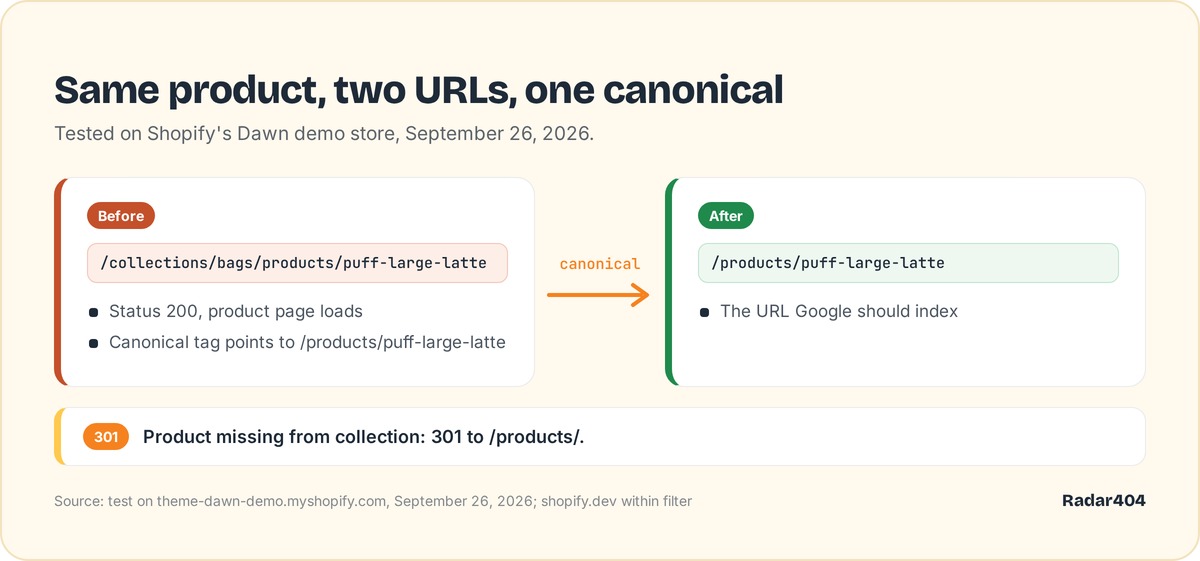 The collection path loads the product; the canonical tag points to the /products/ URL.
Two observations, not documented by Shopify. A product URL with collection context kept working when the product wasn't in the collection or the handle didn't exist: it answered with a 301 to /products/ (we tested a handle that never existed, not a freshly deleted collection). The collection page alone (/collections/x) returned a 404. Create your redirect for that page.
Google's redirects guide explains that a permanent redirect signals the target should be canonical, which is what you want when a collection goes away.
Checklist before you rename or delete a collection
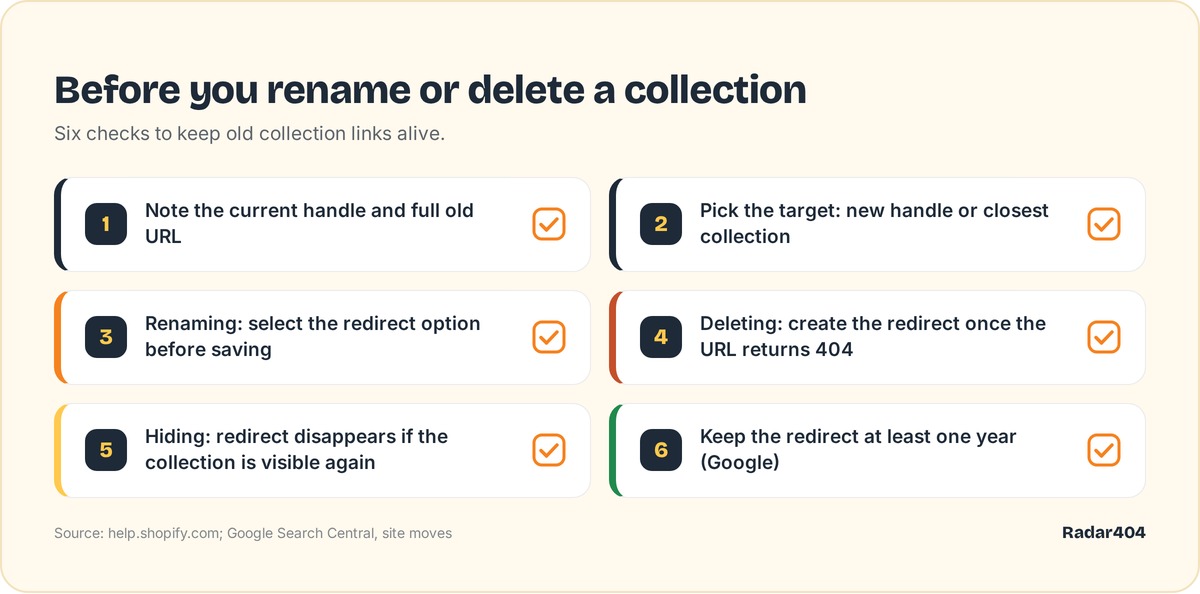 Six checks to run before touching a live collection URL.
- Write down the current handle and the full old URL.
- Pick the target: the new handle, or the closest remaining collection.
- When renaming, select the redirect option before you save.
- When deleting, create the redirect in Content > Menus > View URL Redirects once the old URL returns a 404.
- When hiding, remember the redirect disappears if you make the collection visible again.
- Keep the redirect at least one year, the duration Google recommends in its site move guide.
For the full redirect toolbox, read the Shopify 301 redirects guide. If products disappear along with the collection, follow how to fix broken links from deleted products, and for single products, see how to change a product URL on Shopify.
Catching the collection links you forgot
The native tool only handles the redirects you remember to create. Radar404 adds a beacon to your 404 page that reports each broken URL in real time. Its AI compares the URL to your products and collections and suggests the closest existing page with a confidence score. Redirects it creates are native Shopify redirects, so they stay after you uninstall. It doesn't crawl your site: it sees a broken URL only when a visitor or a bot requests it. As of September 26, 2026, the Free plan costs $0 and includes unlimited 404 detection and one-click manual redirects; Starter costs $5/month and Pro $24/month.
Frequently asked questions
Can I remove /collections/ from my Shopify URLs?
No. Shopify treats /collections and /products as fixed paths, and its help center documents no option to remove them. You can only change the handle that comes after the prefix.
How can I modify the URL of a collection in Shopify?
Go to Products > Collections, open the collection, edit the Search engine listing section and change the URL handle field. Select the option to create a redirect from the old URL to the new one, then save.
How do I hide collections on Shopify?
Change the collection's availability so it is hidden. The collection URL then returns a 404, so a URL redirect you create for it will work. If you make the collection visible again, Shopify deletes that redirect automatically.
How do I delete a collection from Shopify?
Go to Products > Collections, select the collection, open the menu, choose Delete collection, then confirm with Delete. Shopify's help page says nothing about a redirect, so create one yourself in Content > Menus > View URL Redirects.